
Local Excel Files
Ghost RPA can read and write directly to .xlsx files on your machine. No Google account, no cloud setup — just create a spreadsheet, point your script to it, and run.
{{EMAIL}}, {{PHONE}}, etc.) as Google Sheets — the only difference is where the file lives.Step 1 — Create the Excel File
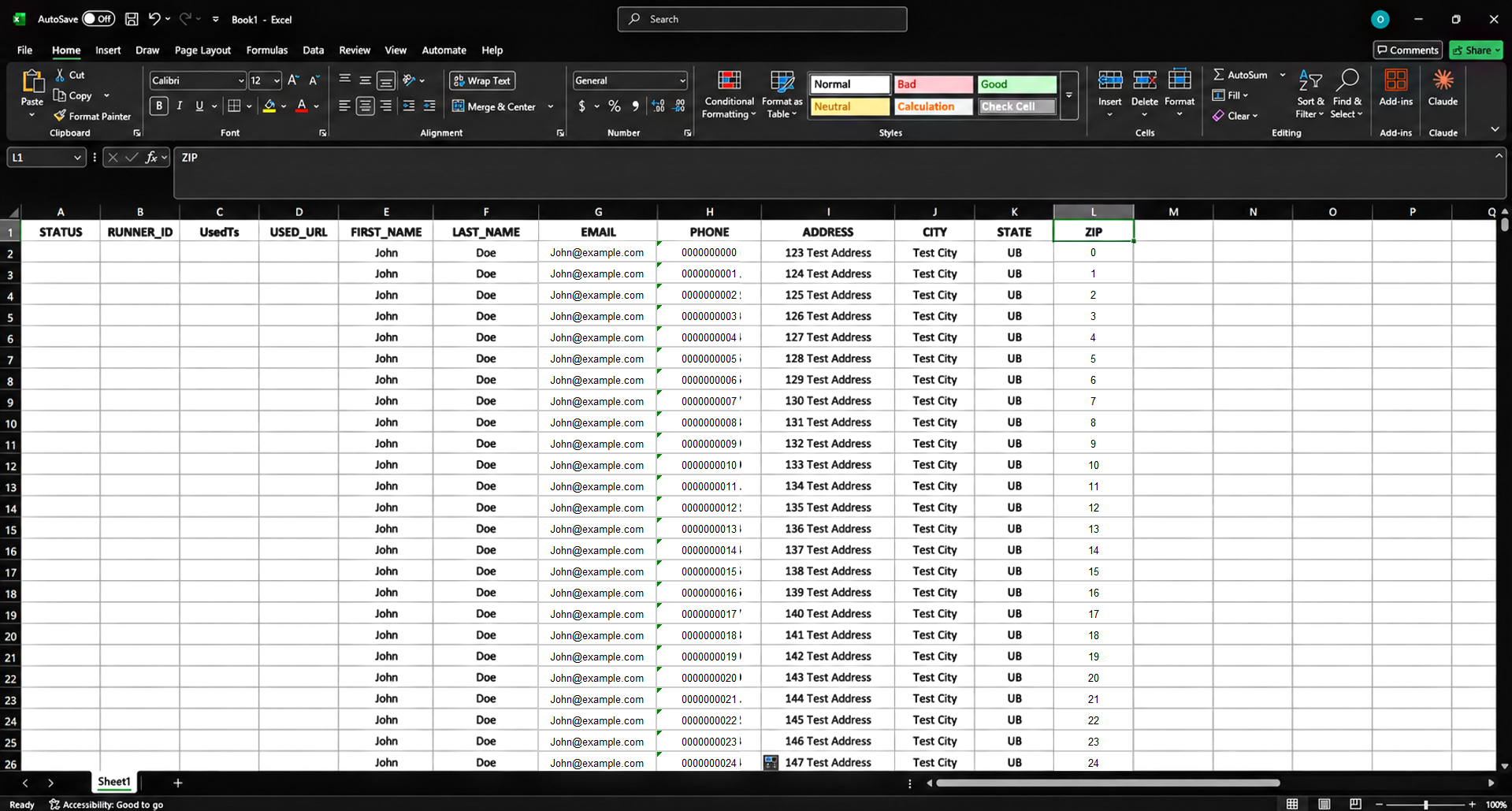
Open Microsoft Excel (or any spreadsheet app that saves .xlsx) and create a new workbook.
- Name the first sheet tab Sheet1 (exact spelling, case-sensitive).
- Set up the header row in Row 1. The first three columns are reserved by the engine:
| Column | Header | Purpose | Who writes |
|---|---|---|---|
| A | STATUS | Run result — "success", "failure", or custom status | Engine |
| B | RUNNER_ID | Which runner processed this row | Engine |
| C | UsedTs | Timestamp when the row was used | Engine |
| D+ | Your headers | Data columns — FIRST_NAME, LAST_NAME, EMAIL, PHONE, ADDRESS, etc. | You |
- Fill in your data starting from Row 2. Leave columns A, B, and C empty — the engine fills those during the run.
- Save the file anywhere on your machine (e.g.
C:\Users\YourName\Documents\leads.xlsx).
Step 2 — Copy the File Path
You need the full path to your .xlsx file for the script.
- Open File Explorer and navigate to your Excel file.
- Hold Shift and right-click the file, then select Copy as path. This copies the full path with quotes.
- Or click the address bar in File Explorer and copy the folder path, then append
\yourfile.xlsx.
Step 3 — Add to Your Script
In your script JSON file, set the sheet type to excel and provide the file path:
{
  "sheet": {
    "type": "excel"
  },
  "sources": {
    "excel_path": "C:\\Users\\YourName\\Documents\\leads.xlsx"
  }
}That's it — no OAuth, no API keys, no sharing. Just a local file path and you're ready to run.
How It Works at Runtime
When a run starts, the engine:
- Opens the
.xlsxfile and reads all rows from Sheet1. - Picks rows where the
STATUScolumn is empty (not yet processed). - For each profile, assigns a row and writes
RUNNER_IDandUsedTsto claim it. - Runs the script actions — data tokens like
{{EMAIL}},{{PHONE}}etc. pull values from that row's columns. - After completing (or failing), writes the final
STATUSback to the row and saves the file.
Troubleshooting
File not found
Error: ENOENT: no such file or directory
Fix: Double-check the file path in your script. Make sure backslashes are escaped (\\) in JSON. The file must exist before the run starts.
File is locked / cannot write
Error: EBUSY: resource busy or locked
Fix: Close Excel (or any other app that has the file open) before starting the run.
Sheet1 tab not found
Fix: Rename the first tab to exactly Sheet1 (case-sensitive). Some Excel versions default to locale-specific names.