
Uploads
The Uploads page (labeled "Scripts" in the app header) is where you tell Ghost RPA where your automation scripts live, configure which sheet each script reads from, and manage log and screenshot storage paths.
Workspace Storage Configuration
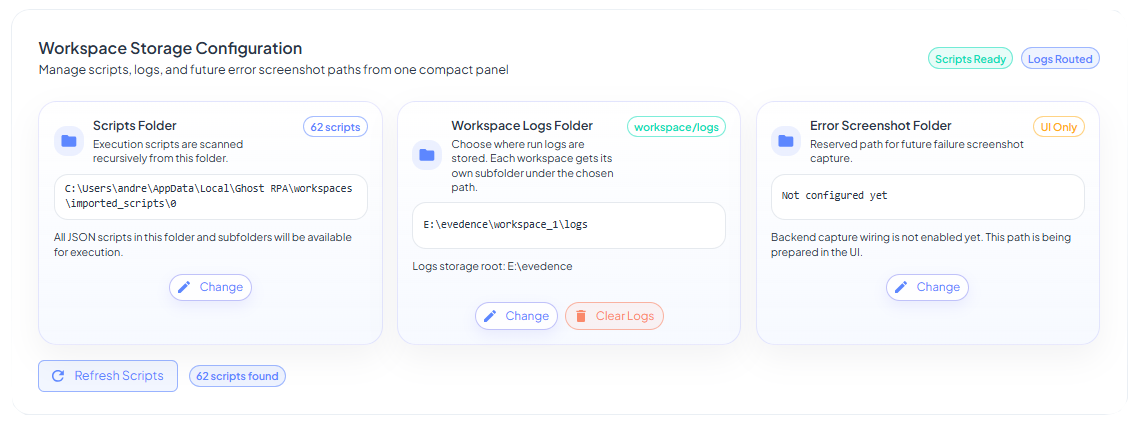
The top section shows three folder cards side by side. Each card displays the current path, a status chip, and a Change button.
Scripts Folder
The Scripts Folder card shows the path where Ghost RPA scans for automation JSON scripts. The engine recursively scans all subfolders.
| Detail | Value |
|---|---|
| Chip | Shows "N scripts" — the total number of JSON scripts found in the folder |
| Default | If not configured, shows "Not configured (using default uploads folder)" |
| Example path | E:\scripts or /home/user/scripts |
How to Set the Scripts Folder
- Click Change on the Scripts Folder card.
- A dialog opens with two options:
- Browse Folders — opens the native folder picker on your machine
- Enter path manually — type the full path in the text field
- Click Save Scripts Folder. The page rescans and lists all found scripts.
Workspace Logs Folder
The Workspace Logs Folder card shows where run logs are stored. Each workspace gets its own subfolder under this path (e.g. workspace_1/logs/).
| Detail | Value |
|---|---|
| Chip | workspace/logs |
| Default | If not configured, logs are stored beside each workspace's .env file automatically |
| Clear Logs button | Permanently deletes all .log and .txt files in the current workspace's log folder. Files in use are skipped. |
Error Screenshot Folder
The Error Screenshot Folder card is a reserved path for future automatic error screenshot capture. Currently UI only — the backend wiring for automatic capture is not enabled yet.
Available Scripts
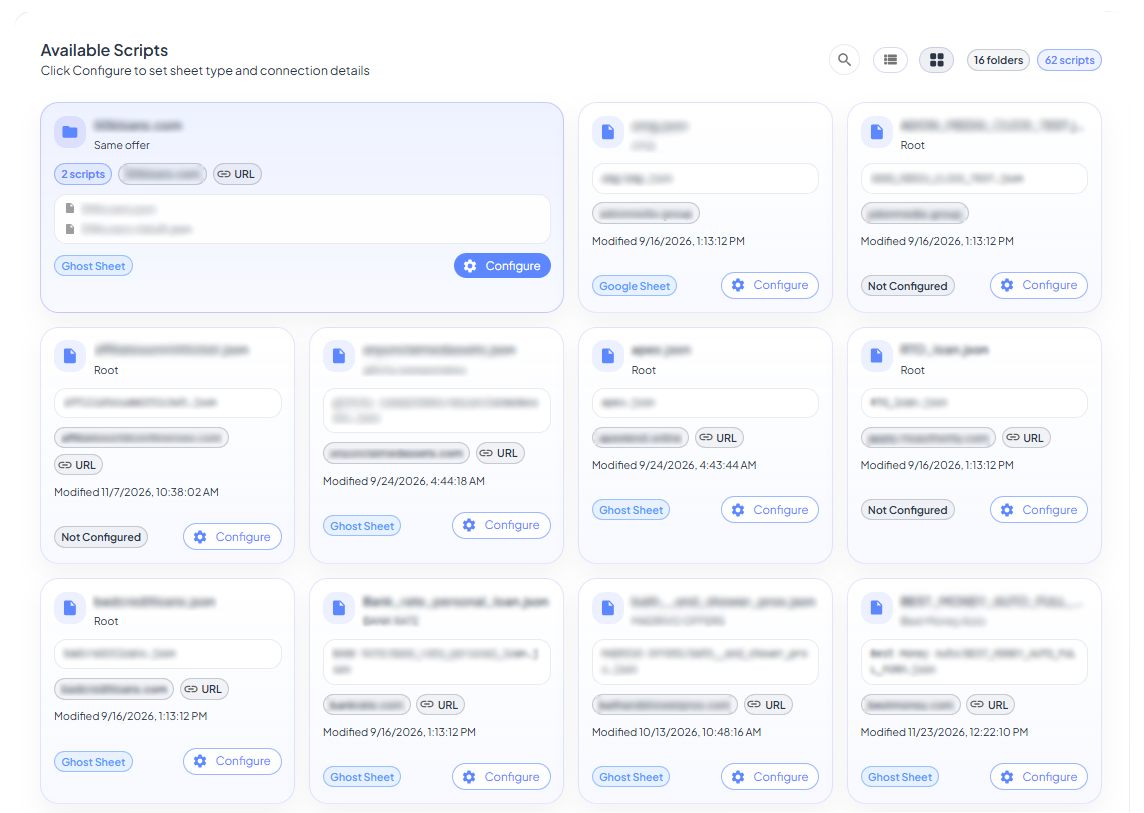
Below the folder cards, the Available Scripts section lists every JSON script found in the scripts folder. The header shows:
- Refresh Scripts button — rescans the folder
- Search (magnifying glass icon) — search by offer name, script name, or domain
- List/Grid toggle — switch between list view and grid card view
- Folder count and Script count chips
List View
In list view, scripts are organized in a file-tree hierarchy matching the folder structure on disk. Each folder row is expandable and shows:
- Folder name and icon
- N folders and N scripts chips
- Expand/collapse chevron
Each script row shows:
- Script name (file name without extension)
- Sheet type chip (if configured) — e.g. "Google Sheet", "Office 365"
- Secondary info — offer name, folder path, relative path, file size, and last modified date
- Configure (gear icon) button — opens the sheet binding dialog
Grid View
In grid view, scripts are shown as cards in a responsive grid. Scripts that share the same offer (same offergroup or same offer name + URL) are grouped into a single group card. Each card shows:
- Script name and folder path
- Relative file path in a monospace box
- Domain chip — hover to see the full list of target domains
- URL chip — hover to see the offer URL(s)
- Last modified date
- Sheet type chip or "Not Configured" label
- Configure button
Configuring a Script's Sheet
Click Configure on any script to open the sheet binding dialog. This tells the engine where to read and write data for that script.
Sheet Type
Select the type of data source:
| Type | What to Enter | Example |
|---|---|---|
| Google Sheet | Google Sheet ID — the long ID from the Google Sheets URL | 1BxiMVs0XRA5nFMdKvBdBZjgmUUqptlbs74OgvE2upms |
| Excel (Local) | Excel File Path — relative or absolute path to the .xlsx file | data\myfile.xlsx |
| Office 365 | Office 365 Sheet URL — the full Excel Online share link | https://excel.office.com/... |
| Ghost Sheet | Ghost Sheet ID — the built-in sheet identifier | wb-xxxxxxxx-xxxx-xxxx-xxxx-xxxxxxxxxxxx-sheet-1 |
Use State Filter
A toggle switch below the sheet fields. When enabled (default), only profiles matching the allowed states will be used with this script. This prevents the engine from re-processing rows that already have a status.
Saving the Configuration
- Select the sheet type from the dropdown.
- Enter the sheet ID, path, or URL in the corresponding field.
- Toggle Use State Filter as needed.
- Click Save Configuration.
A success message confirms the save. If the script is part of an offer group, the message lists all scripts that were updated (e.g. "Sheet updated in 3 scripts: script_a.json, script_b.json, script_c.json").
Integration Guides
For detailed setup instructions for each sheet type, see:
- Google Sheets Integration — service account setup, sharing, and Sheet ID
- Office 365 Integration — Azure app registration, consent, and share link
- Local Excel Files — file path and format requirements
Tips
- Always Refresh Scripts after adding or removing script files from the folder. The list does not auto-detect file system changes.
- Use Grid view for offer overview. Group cards make it easy to see which offers are configured and which are not.
- Search is multi-term. You can type
project-a googleto find project scripts that use Google Sheets. - Script changes don't need a restart. The engine reads the script fresh at the start of each run. Add or update script files any time — just refresh the list.
- Log cleanup is per-workspace. The Clear Logs button only deletes logs for the currently active workspace. Other workspaces' logs are untouched.