
Office 365 Integration
Ghost RPA can read and write to Excel workbooks hosted on OneDrive or SharePoint using the Microsoft Graph API. This guide walks you through registering an Azure app, connecting your Microsoft account, and preparing your online spreadsheet.
{{EMAIL}}, {{PHONE}}, etc.) as Google Sheets — the only difference is the authentication provider and where the file lives.Prerequisites
- A Microsoft account (personal, work, or school)
- Access to the Azure Portal (free — no Azure subscription needed)
- An Excel workbook stored on OneDrive or SharePoint
- Ghost RPA installed and running on your PC
Step 1 — Register an Azure App
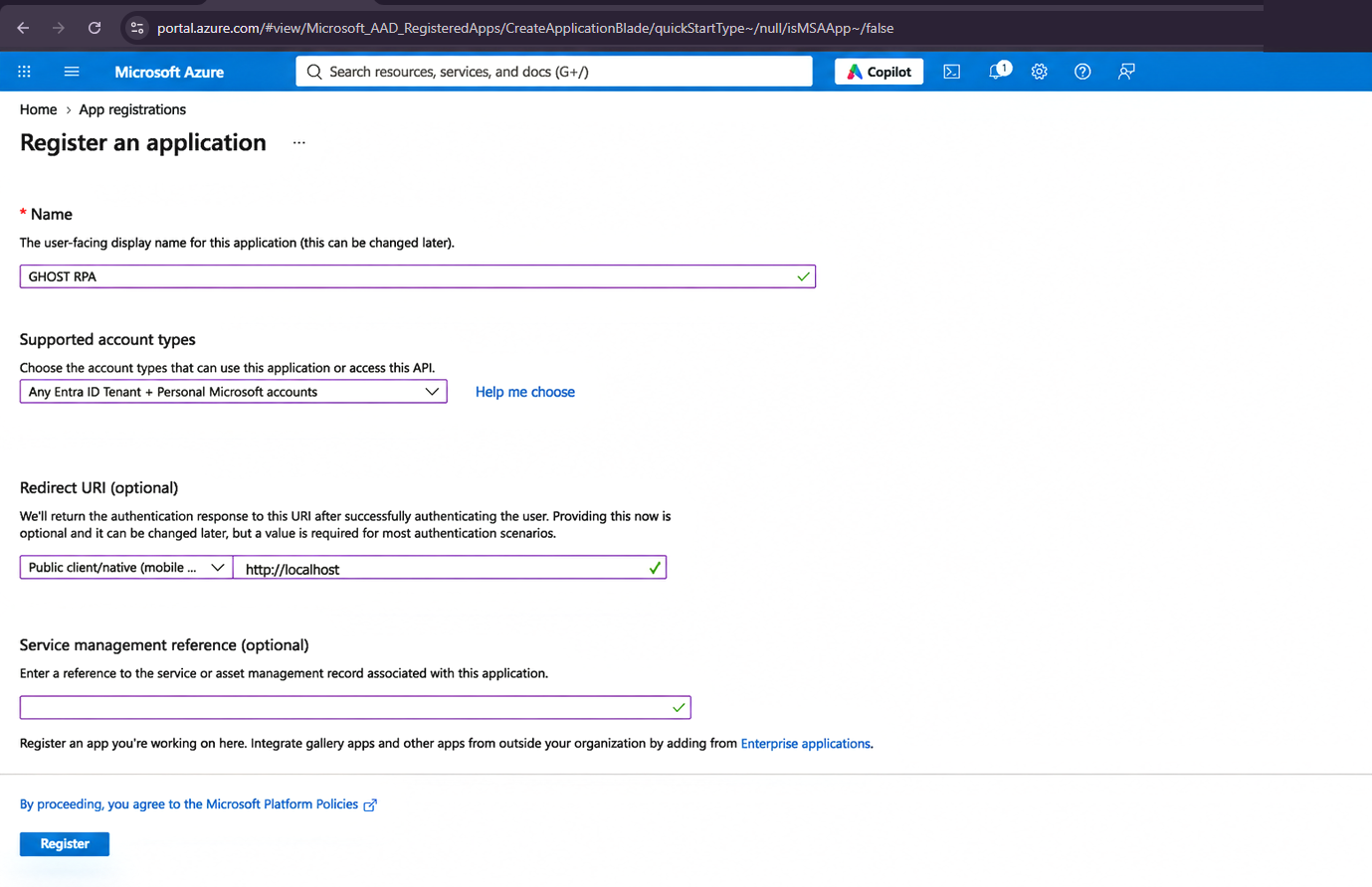
Ghost RPA needs an Azure "App registration" to authenticate with Microsoft. You create this once in the Azure Portal.
- Go to Azure Portal → App registrations and sign in with your Microsoft account.
- Click + New registration.
- Fill in the Name — for example
GHOST RPA. - Under Supported account types, select Any Entra ID Tenant + Personal Microsoft accounts (this is the broadest option — works for personal, work, and school accounts).
- Under Redirect URI (optional), select Mobile and desktop applications from the dropdown and enter:
http://localhost
(Ghost RPA listens on a random local port during sign-in — Microsoft ignores the port whenhttp://localhostis registered.) - Click Register at the bottom of the page.
Step 2 — Copy Application (Client) ID
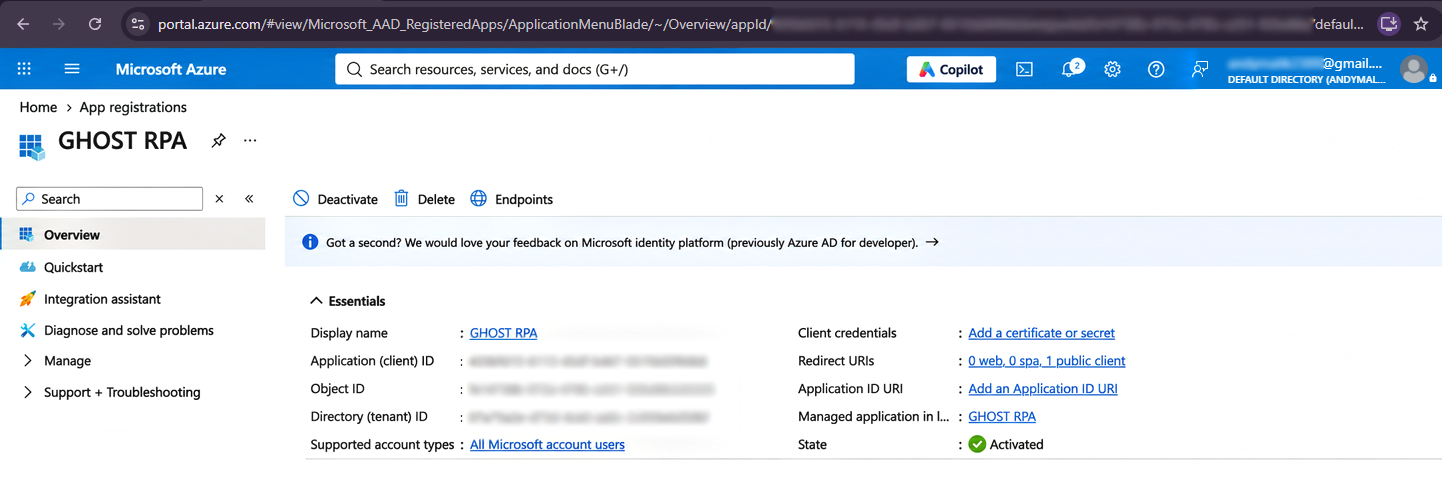
After registration, Azure takes you to the app's Overview page. You need one value from here:
- Copy the Application (client) ID — a UUID like
a1b2c3d4-e5f6-7890-abcd-ef1234567890. - Optionally, note the Directory (tenant) ID if you want to restrict sign-in to a specific organization. For most users, leave this as the default (
organizations) which allows any Microsoft account.
Step 3 — Set API Permissions
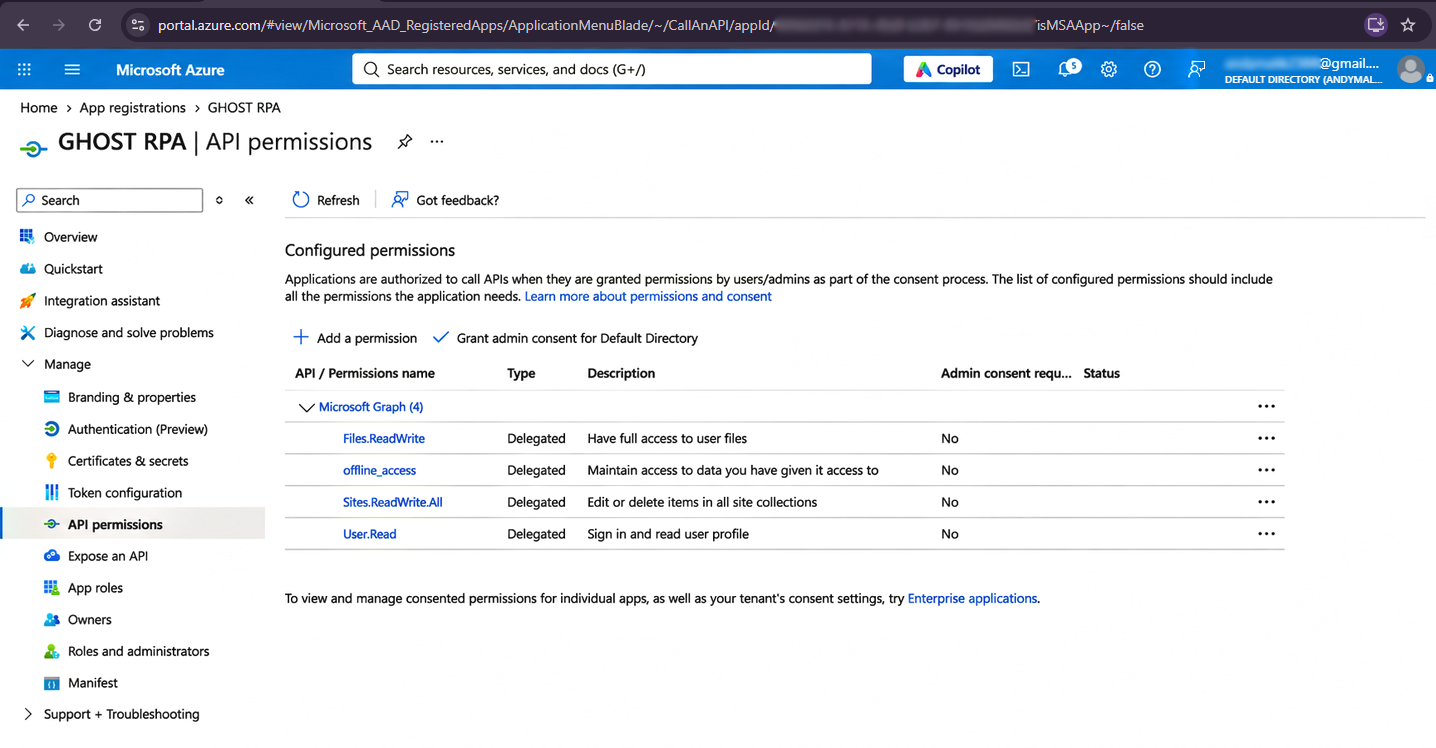
Your app needs permission to access OneDrive files and Excel workbooks through Microsoft Graph.
- In your app registration, go to API permissions in the left sidebar.
- Click + Add a permission → Microsoft Graph → Delegated permissions.
- Search for and add these permissions:
User.Read— Sign in and read user profileFiles.ReadWrite— Read and write user filesSites.ReadWrite.All— Read and write items in SharePoint sitesoffline_access— Maintain access to data (for token refresh)
- Click Add permissions.
Step 4 — Configure in Ghost RPA
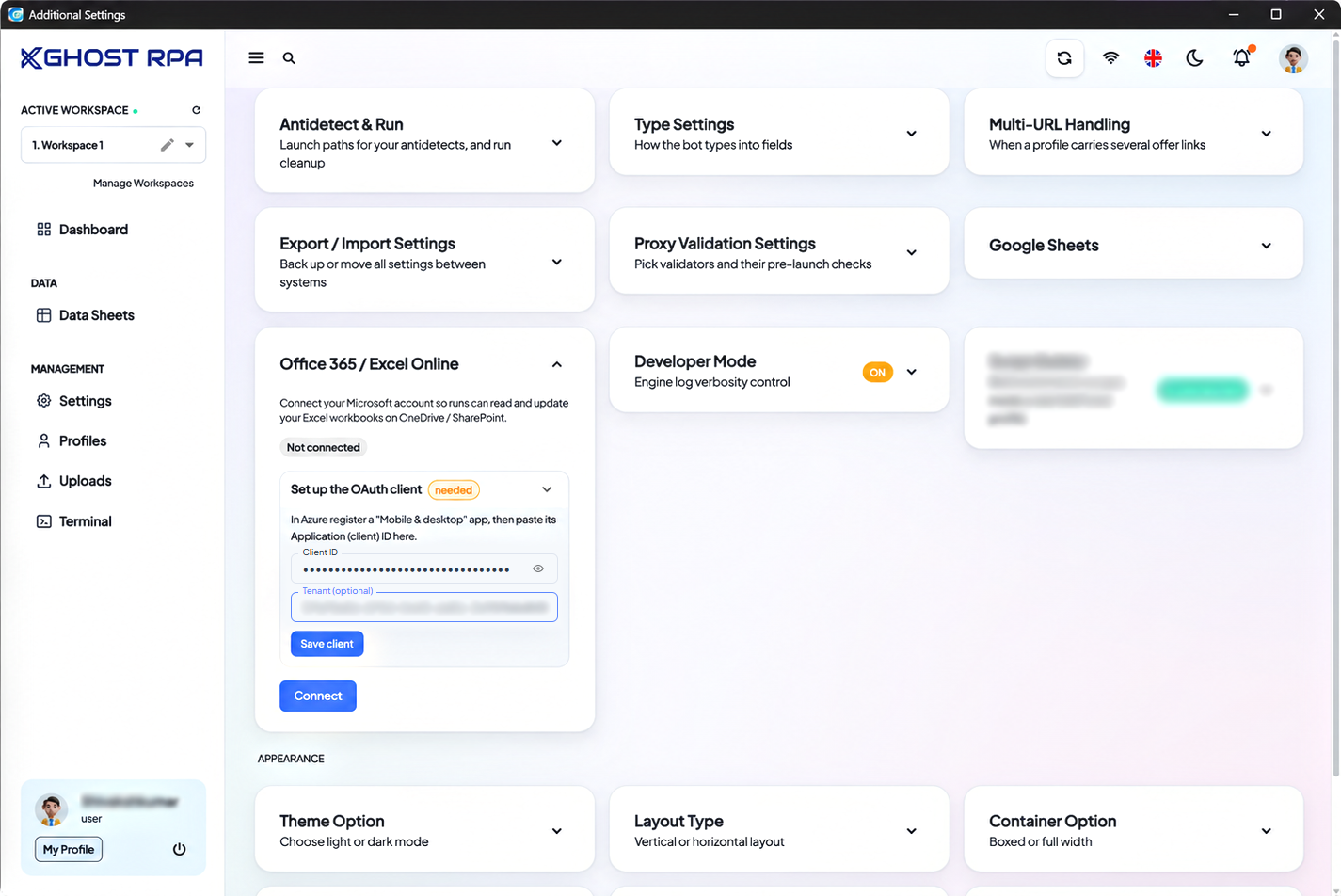
Now paste your Azure app credentials into Ghost RPA so it can connect to your Microsoft account.
- Open Ghost RPA and go to Settings (gear icon in the sidebar).
- Scroll down to Sheet Connections and find the Office 365 card.
- Click "Set up the OAuth client" to expand the configuration form.
- Paste your Application (client) ID from Step 2.
- If you noted a specific Tenant ID, enter it in the Tenant field. Otherwise, leave it as
organizations(the default — works for any Microsoft account). - Click Save client. You'll see a confirmation message.
Step 5 — Connect Your Microsoft Account
With the app credentials configured, you can now authorize Ghost RPA to access your OneDrive files.
- On the Office 365 card, click the Connect button.
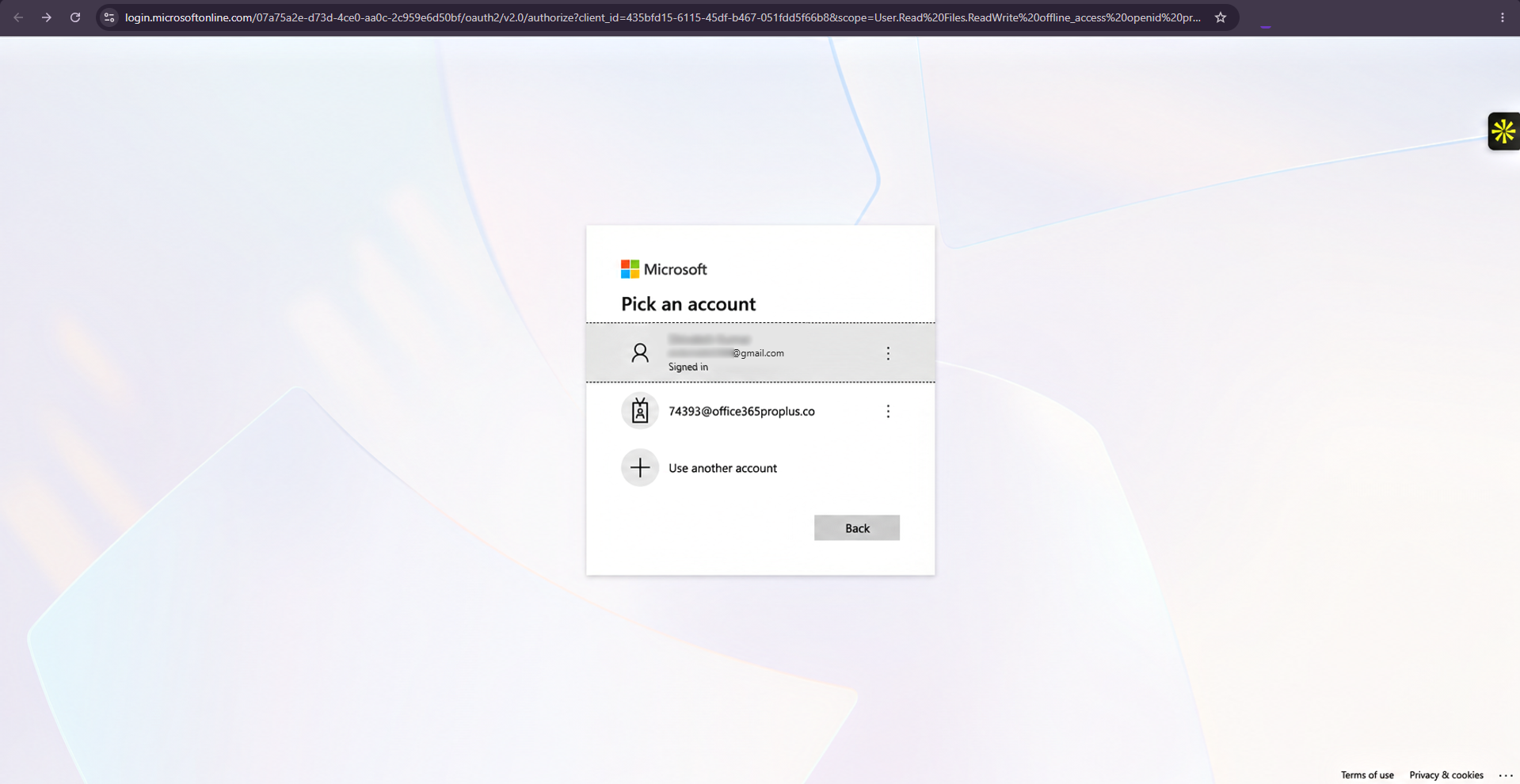
- Your default browser will open to Microsoft's sign-in page. Sign in with the Microsoft account that has access to your OneDrive workbook.
- Review the permissions and click Accept to grant Ghost RPA access.
- The browser will show a success message. Go back to Ghost RPA — the card now shows "Connected" with your account.
Step 6 — Prepare Your Excel Workbook
Your Excel workbook on OneDrive needs the same column structure as Google Sheets so the engine can read data and write results.
Create the workbook
- Go to OneDrive or office.com and create a new Excel workbook (or upload an existing
.xlsxfile). - Name the first sheet tab Sheet1 (exact spelling, case-sensitive).
Column layout
The first three columns (A, B, C) are reserved by the engine. Your data columns start from column D onward.
| Column | Header | Purpose | Who writes |
|---|---|---|---|
| A | STATUS | Run result — "success", "failure", or custom status | Engine |
| B | RUNNER_ID | Which runner processed this row | Engine |
| C | UsedTs | Timestamp when the row was used | Engine |
| D+ | Your headers | Data columns — EMAIL, FIRST_NAME, LAST_NAME, PHONE, ADDRESS, etc. | You |
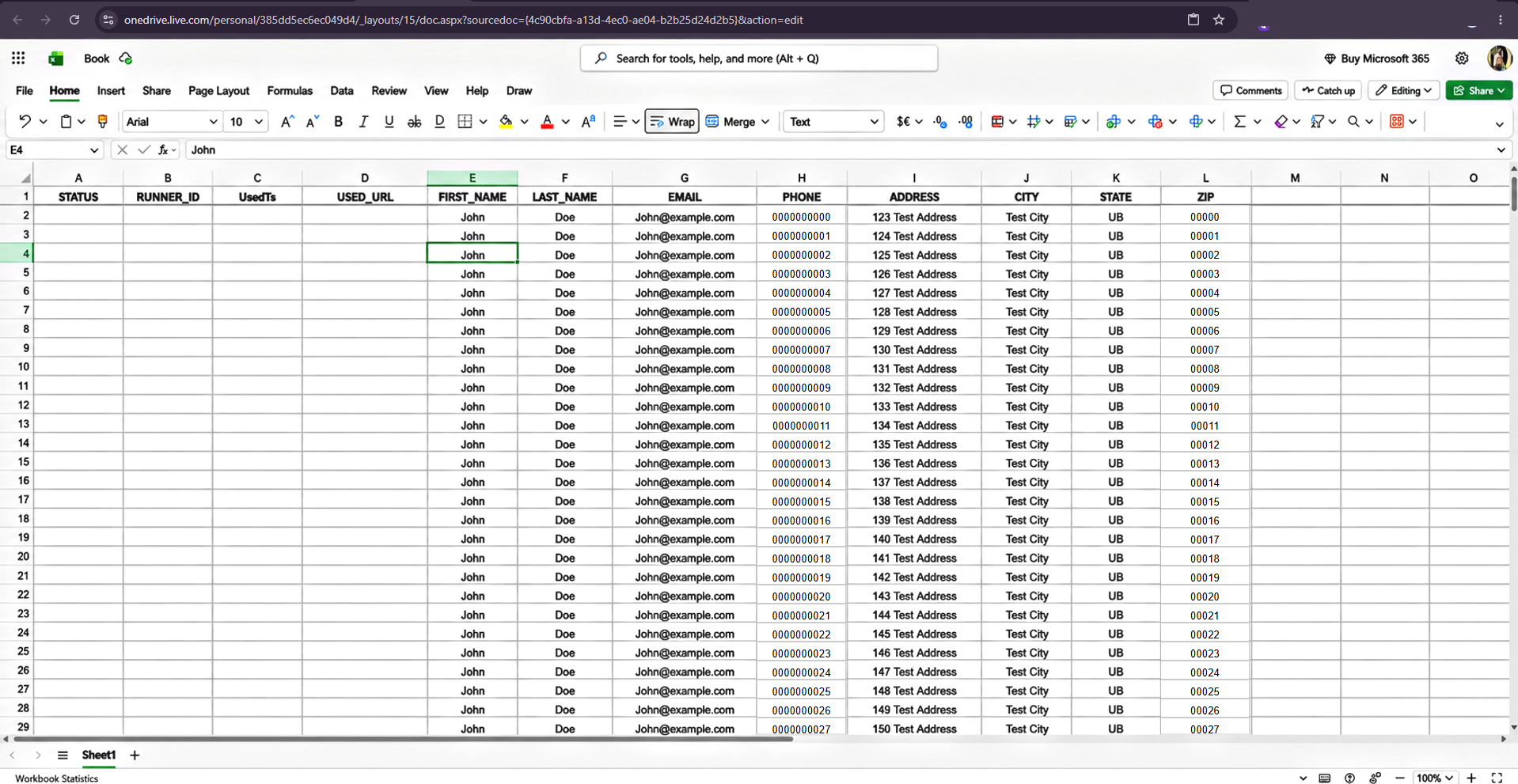
Example sheet
Here's what a typical workbook looks like before a run:
| STATUS | RUNNER_ID | UsedTs | FIRST_NAME | LAST_NAME | PHONE | |
|---|---|---|---|---|---|---|
| john@example.com | John | Smith | 5551234567 | |||
| jane@example.com | Jane | Doe | 5559876543 |
After a run, the engine fills in STATUS, RUNNER_ID, and UsedTs for each processed row. Rows with an existing STATUS are skipped (already done).
Optional: Sheet2 (VCC / Billing)
If your workflow involves Virtual Credit Card (VCC) billing, add a second tab named Sheet2. The engine uses this for billing-specific status writes (vcc_sheet_status action). If you don't use VCC, you can skip this tab.
Optional columns
| Header | Purpose |
|---|---|
COMMENT or COMMENTS | The sheet_comment action writes here |
USED_URL | The URL that was opened for this row |
Step 7 — Get the Sharing Link
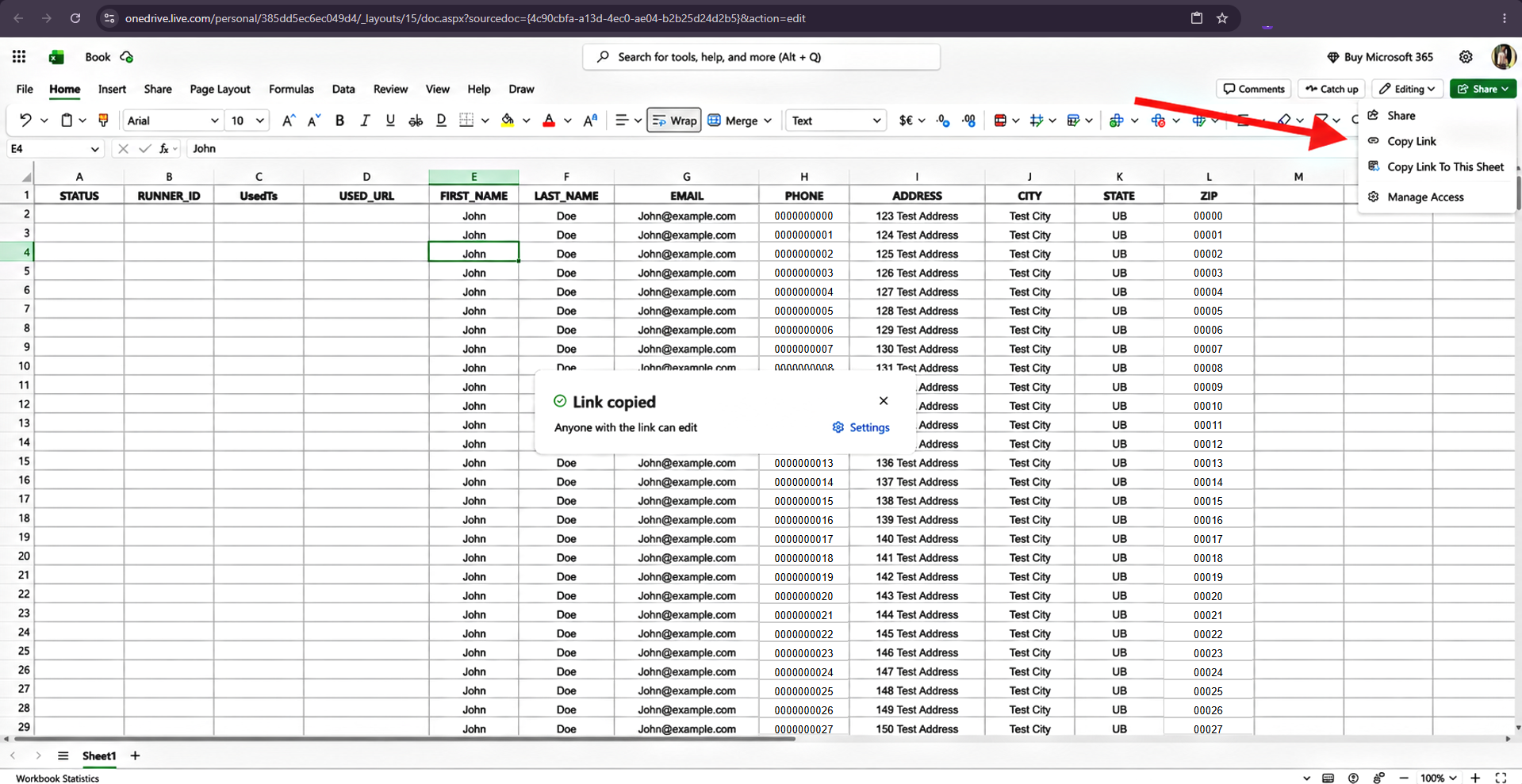
Ghost RPA needs the OneDrive sharing URL to locate your workbook via the Microsoft Graph API.
- Open your workbook in OneDrive or Excel Online.
- Click the Share button at the top-right corner.
- Click Copy link to get the sharing URL. It looks something like:
https://1drv.ms/x/s!AmXeZ...orhttps://onedrive.live.com/edit.aspx?...
Step 8 — Link the Workbook to Your Script
Finally, tell your script which workbook to use by adding the sharing URL and setting the sheet type to office365.
{
  "sheet": {
    "type": "office365"
  },
  "sources": {
    "office365_sheet_url": "https://1drv.ms/x/s!AmXeZ..."
  }
}o365, ms, microsoft, or excel_online as the sheet type — they all map to the same Office 365 driver.That's it — your Office 365 workbook is now connected and ready to use. When you run the script, the engine will read rows from Sheet1 and write results back automatically through the Microsoft Graph API.
How It Works at Runtime
When a run starts, the engine:
- Authenticates with Microsoft using MSAL (Microsoft Authentication Library) and your stored token.
- Resolves the sharing URL to a OneDrive drive ID and item ID, then creates a persistent workbook session for performance.
- Reads all rows from
Sheet1and picks rows where theSTATUScolumn is empty (not yet processed). - For each profile, assigns a row and writes the
RUNNER_IDandUsedTsto claim it. - Runs the script actions — data tokens like
{{EMAIL}},{{PHONE}}etc. pull values from that row's columns. - After completing (or failing), writes the final
STATUSand optionalCOMMENTback to the row.
Troubleshooting
Missing tenant_id or client_id
Error: office365: missing tenant_id/client_id in uploads/office365.json
Fix: Go to Settings → Sheet Connections → Office 365 and enter your Application (client) ID from Step 2. Click Save client, then try connecting again.
Failed to get access token
Error: office365: failed to get access token
Fix: Click Connect on the Office 365 card in Settings. If the browser window doesn't appear, check that the Redirect URI in your Azure app registration is set to http://localhost (under Mobile and desktop applications platform). Microsoft ignores the port number.
Failed to resolve sharing URL
Error: office365: failed to resolve sharing URL to driveItem
Fix: Double-check the office365_sheet_url in your script JSON. Make sure you copied the full sharing link from OneDrive. The file must be accessible to the Microsoft account you connected.
Sheet1 tab not found
Fix: Rename the first tab in your workbook to exactly Sheet1 (case-sensitive). Excel Online sometimes defaults to locale-specific names.
Missing STATUS or RUNNER_ID columns
Error: office365: missing STATUS/RUNNER_ID columns
Fix: Make sure Row 1 of Sheet1 has STATUS in column A and RUNNER_ID in column B. The engine needs these headers to claim and track rows.
Token expired / Disconnected
MSAL tokens can expire if unused for a long time or if you revoke access from your Microsoft account security settings.
Fix: Go to Settings → Sheet Connections → Office 365 and click Connect again to re-authorize.
Throttle errors (429)
Microsoft Graph has rate limits. Ghost RPA automatically handles 429 Too Many Requests responses by respecting the Retry-After header and backing off.
Fix: The engine handles this automatically. If it persists, reduce the number of concurrent threads or wait a few minutes.
Workbook session expired
Persistent workbook sessions expire after ~5 minutes of inactivity. Ghost RPA detects this and automatically recreates the session.
Fix: No action needed — this is handled automatically. If you see repeated session errors, check your network connection and make sure the workbook is not locked by another application.