
My Profile
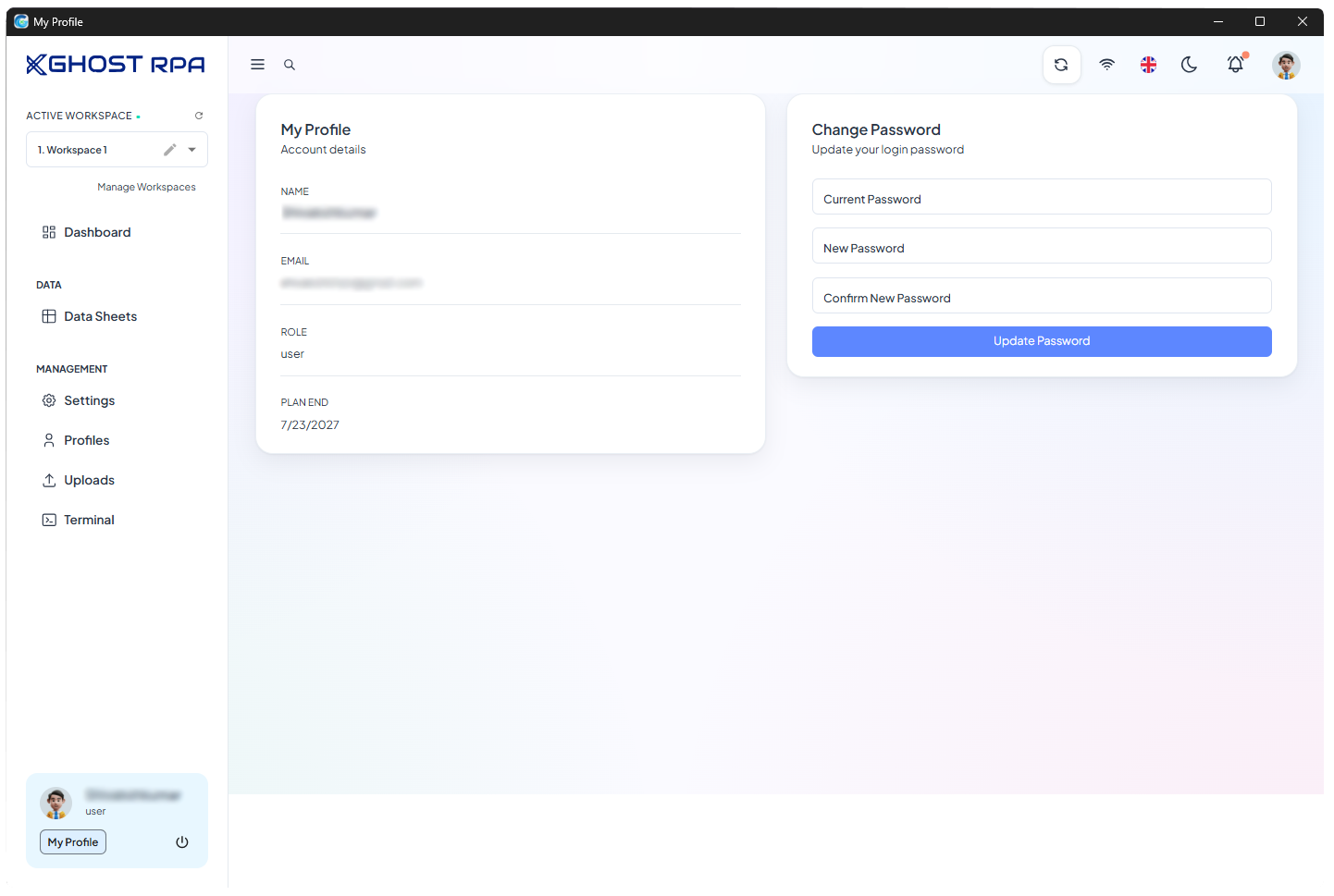
The My Profile page shows your account information and lets you change your login password. It is accessible from the sidebar under your name or avatar — the last item before the logout button.
This page is not workspace-scoped. Your profile is your login identity — it applies globally across all workspaces and devices.
Page Layout
The page uses a two-card layout side by side (stacked vertically on mobile):
- Left card — My Profile (account details, read-only)
- Right card — Change Password (editable form)
Account Details
The My Profile card displays your account information in four read-only fields. This data is fetched from the Ghost RPA authentication server when the page loads.
| Field | What it Shows |
|---|---|
| Name | Your display name as registered on your Ghost RPA account. This is the name shown in the sidebar and in device activity logs. |
| The email address you use to log in. This is also the email associated with your license and device registrations. | |
| Role | Your account role — typically user or admin. Admin accounts have access to the Admin Console for managing users and devices. |
| Plan End | The expiration date of your current subscription plan, displayed in your local date format (e.g. "12/31/2026"). If no plan end is set, it shows a dash (—). |
These fields are read-only. To change your name or email, contact your administrator. Only your password can be changed from this page.
Change Password
The Change Password card lets you update your login password. It has three fields and a submit button:
| Field | What to Enter |
|---|---|
| Current Password | Your existing login password. This is required to verify your identity before allowing the change. |
| New Password | The new password you want to set. Choose a strong password that you have not used elsewhere. |
| Confirm New Password | Re-type the new password exactly. The form checks that this matches the New Password field before submitting. |
How to Change Your Password
- Navigate to My Profile from the sidebar.
- In the Change Password card, enter your current password in the first field.
- Type your new password in the New Password field.
- Re-type the new password in the Confirm New Password field.
- Click Update Password. The button text changes to "Updating..." and is disabled while the request is in progress.
- If successful, a green alert appears: "Password updated successfully." All three password fields are cleared automatically.
Error Messages
If something goes wrong, a red error alert appears at the top of the Change Password card. Common errors:
| Error | Cause | Fix |
|---|---|---|
| "Enter current and new password." | One or both fields are empty | Fill in all three password fields |
| "New password and confirm password do not match." | The two new password fields differ | Re-type the new password in both fields — they must be identical |
| "Session expired. Please login again." | Your login token has expired | Log out and log back in, then try again |
| "Password change failed" | The current password is wrong, or the server rejected the new password (too short, too common, etc.) | Verify your current password is correct. If it is, try a stronger new password. |
| "Failed to load profile" | The page could not fetch your account details from the authentication server | Check your internet connection and reload the page. If the issue persists, the Ghost RPA cloud server may be temporarily unavailable. |
Tips
- Your login works across all devices. Changing your password here updates it everywhere — any device using the same Ghost RPA account will need the new password on its next login.
- Plan End shows your subscription expiry. If your plan is about to expire, contact your administrator or renew through the admin portal to keep your devices active.
- Admin vs. User role. If your role shows "user", you can operate the app normally. If it shows "admin", you also have access to the Admin Console where you can manage other users, devices, and remote controls.
- Logging out does not change your password. If you forget your password, use the "Forgot Password" link on the login page — it sends a reset email to your registered address.