
Settings
The Settings page configures everything the engine reads before a run — your browser provider, proxy credentials, threading, user-agent selection, domain targeting, AI keys, and captcha solving. Settings are saved per-workspace to a .env file.
.env file when you click Save. The header bar shows the workspace name, provider, proxy mode, thread count, and last saved timestamp.Page Layout
The Settings page has a top bar and seven config sections below it:
- Top bar — shows the workspace name chip, current provider, proxy mode, thread count, traffic split on/off, config source, and last saved time. Action buttons: Browse UAs, Update Useragent, Save, and Reset.
- If the desktop app is offline, a yellow Synced Fallback alert appears — settings are read-only from the last saved state.
- If no UA catalog is found, a yellow UA Freshness alert prompts you to update.

1. Browser Config
Controls which antidetect browser the engine uses to launch profiles.

| Field | Description |
|---|---|
| Browser Provider | The antidetect browser to use. Options:
GhostFox is the built-in Firefox-based option — no external software needed. |
| Group Suffix | The engine creates browser profiles in a group named with a fixed prefix + your suffix. For example, with AdsPower the prefix is GHOST_, so a suffix of project1 creates group GHOST_project1. |
| API Key | Some providers (Dolphin, GeeLark, GoLogin, Lalicat, MoreLogin, Multilogin, Octo Browser, VMLogin) require an API key or token. This field appears only for those providers. AdsPower, BitBrowser, Incogniton, Kameleo, and Undetectable run without a key. |
| Browser Type | Dropdown to select the browser engine type. Currently supports Chrome. This field determines which browser fingerprint characteristics the engine applies. |
2. User-Agent Config
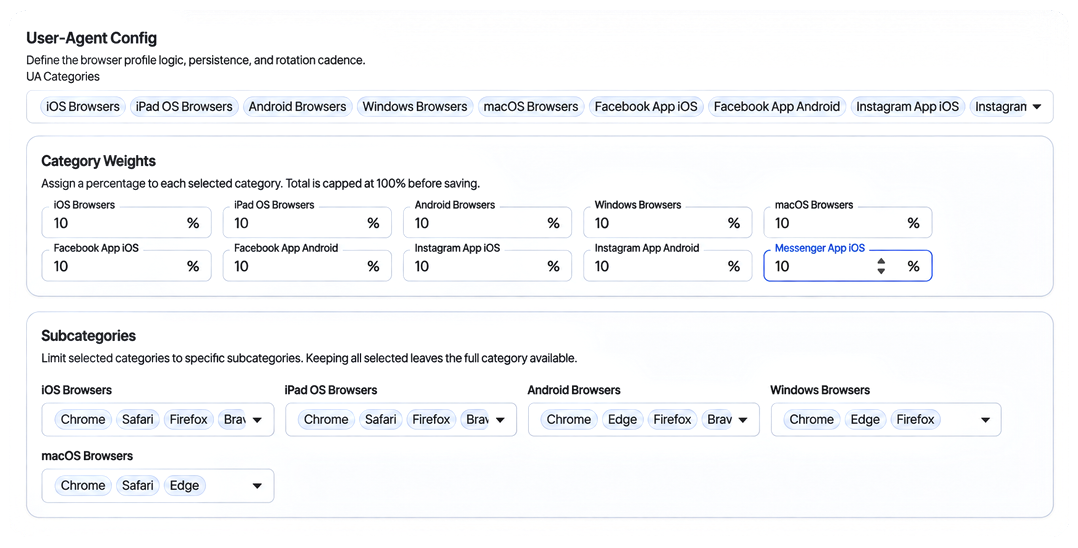
Defines which browser fingerprint identities (user agents) the engine uses. The UA catalog is a local database of real browser strings.
| Field | Description |
|---|---|
| UA Categories | Multi-select dropdown of UA categories (e.g. Chrome Windows, Chrome Mac, Chrome Android, Firefox Windows, Edge Windows, Safari Mac, etc.). Each category represents a browser + OS combination. The engine randomly selects UAs from the checked categories. |
| Browse UAs | Opens a dialog showing all available user agents organized by category — total count, category breakdown, and last updated date. |
| Update Useragent | Fetches the latest UA catalog from the server. Use this periodically to keep your user agents current. |
| UA Category Weights | Per-category percentage fields that control how often each UA category is selected. For example, Chrome Windows 70%, Chrome Android 20%, Chrome Mac 10%. The total must not exceed 100%. If weights are not set, the engine picks randomly from the checked categories with equal probability. |
| UA Subcategories | Per-category dropdown to narrow the selection to specific browsers within a category. For example, under Chrome Windows you can select Edge, Brave, or Samsung Internet as a subcategory filter. This further refines which UAs the engine picks. |
3. Proxy Config
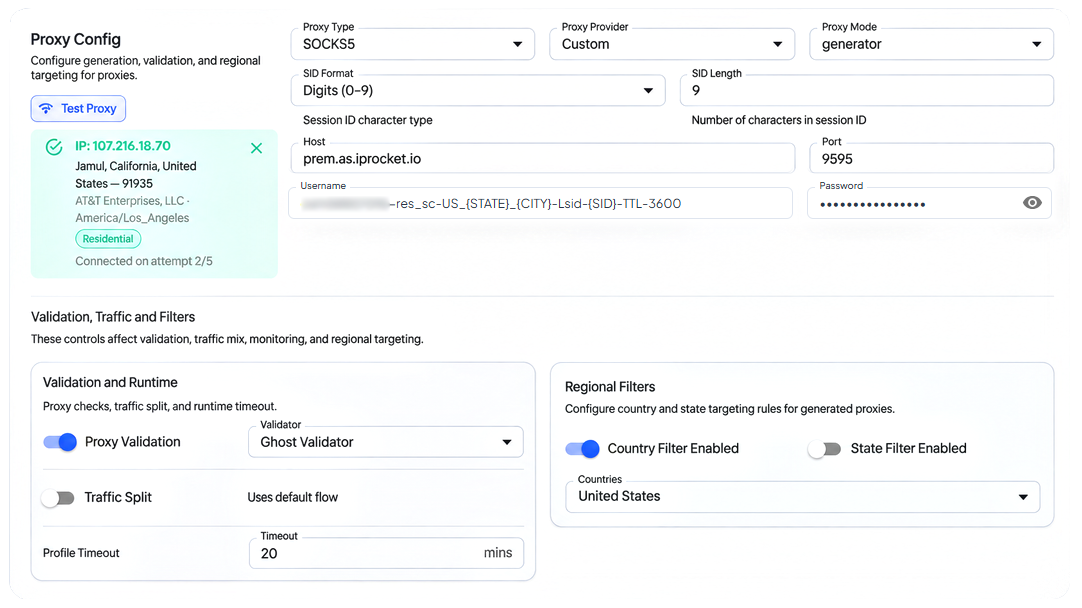
Ghost RPA routes each browser profile through a proxy to ensure every session has a unique IP address. This section covers every proxy option.
Proxy Type
Select the protocol your proxy provider supports:
| Type | Description |
|---|---|
| SOCKS5 | Most common for residential proxies. Supports both TCP and UDP traffic. This is the default. |
| SOCKS4 | Older protocol. Use only if your provider doesn't support SOCKS5. |
| HTTP | HTTP proxy — works for HTTP and HTTPS traffic via CONNECT tunneling. |
| HTTPS | TLS-encrypted proxy connection. |
| No Proxy | Disables proxy entirely. Profiles connect directly using your machine's IP. All other proxy fields are disabled. |
Proxy Mode
Determines how the engine constructs the proxy connection string for each profile:
Generator Mode (Default)
The engine builds the proxy URL from the credentials you provide — host, port, username, and password — plus a generated session ID. Each profile gets a unique session ID appended to the username, ensuring it receives a different IP from the proxy provider.
This is the recommended mode for rotating residential proxies where the provider assigns IPs based on session strings.
API Mode
The engine fetches proxy connection details from an API endpoint you provide. The API returns the proxy host, port, and credentials for each session. Used with providers that have their own proxy management API.
When API mode is selected, the Proxy Type and Provider fields are disabled (they're determined by the API).

Proxy Provider
Select your proxy provider from the dropdown. Each provider has pre-configured connection patterns:
| Provider | Notes |
|---|---|
| ipmars | Residential proxy service |
| ip rocket | Residential proxy with city-level targeting |
| hubproxy | Residential proxy service |
| flopydata | Residential proxy service |
| geonode | Residential proxy service |
| Custom | Any provider not in the list. Enter your own host, port, username, and password manually. |
Connection Credentials
Enter the connection details from your proxy provider:
| Field | Description | Example |
|---|---|---|
| Host | Proxy server hostname or IP | us.smartproxy.com |
| Port | Proxy server port | 10001 |
| Username | Authentication username | user123 |
| Password | Authentication password | pass456 |
| API URL | Only in API mode — the endpoint that returns proxy details | https://provider.com/api/proxy |
Session ID Generation
In Generator mode, the engine appends a unique session ID to your proxy username for each profile. This tells the proxy provider to assign a fresh IP per session. You can configure:
| Setting | Description |
|---|---|
| SID Type | The character set for session IDs:
|
| SID Length | How many characters in the session ID. Default is 8. Longer values reduce the chance of ID collisions. |
Test Proxy
Before starting a run, use the Test Proxy button to verify your connection. The test connects through your proxy and reports:
- IP address — the external IP seen by the target website
- Location — city, state, country, and zip code
- ISP — internet service provider and timezone
- IP type — colored chips showing whether the IP is Residential, Mobile, Proxy, or Datacenter
- Attempt count — which attempt succeeded (up to 5 retries)
A green result means your proxy is working. Red means the connection failed — check your credentials and that your proxy subscription is active.
Clear Proxy Cache
In API mode, the engine caches proxy IPs from previous API calls in a local SQL database. If you change your API URL or switch to a new proxy plan, old/dead IPs may keep loading from cache.
Click Clear Proxy Cache to delete all cached proxies. The next run will fetch fresh IPs from the API.
Proxy Validation
The Proxy Validation toggle (enabled by default) makes the engine verify each proxy before using it in a run. When enabled, the engine connects through the proxy and checks that it returns a valid IP. Failed proxies are skipped and the next one is tried.
Traffic Split
A toggle that enables splitting traffic between Form Fill (data-driven automation with sheet rows) and Visit (simple page visits without sheet data) profiles.
When enabled, the Form Fill % field appears (default 30%). If set to 30%, then 30% of profiles will be Form Fill (reading from your sheet) and 70% will be Visit (navigating to the offer URL without filling forms). This helps mix traffic patterns for more natural-looking automation.
Profile Timeout
A number field (in minutes, default 30) that sets the maximum time a single profile can run before the engine force-closes it. This prevents stuck profiles from blocking the entire run. The timeout starts when the profile opens the offer URL.
Regional Filters
Filter which geographic regions your proxy IPs come from:
| Field | Description |
|---|---|
| Country Filter | Toggle to enable country-level IP filtering. When on, the Countries multi-select appears. |
| Countries | Multi-select dropdown with search. Pick the countries your proxy IPs should come from. The engine rejects proxies from other countries at pre-launch. |
| Filter Mode | Include (only allow selected countries) or Exclude (block selected countries, allow everything else). |
| State Filter | Toggle to enable state-level filtering (US states). When on, the States multi-select appears. |
| States | Multi-select dropdown with search. Pick the US states your proxy IPs should come from. |
4. Threads Management
Controls how many browser profiles run simultaneously and how the scheduler launches them.

Batch Mode
In Batch mode, the engine launches a fixed number of profiles (a "batch"), waits for all of them to complete, then launches the next batch after a configurable interval. This repeats for the configured number of batch repeats.
Rolling Mode
In Rolling mode, the engine maintains a continuous pool of active profiles. As soon as one profile completes, a new one is launched to replace it. The pool size stays between your min and max settings.
| Field | Batch Mode Label | Rolling Mode Label | Description |
|---|---|---|---|
| Scheduler Mode | Batch / Rolling | Choose between batch (fixed rounds) and rolling (continuous pool) | |
| Min profiles | Threads Min | Active Profiles Min | Minimum profiles per batch or in the active pool |
| Max profiles | Threads Max | Active Profiles Max | Maximum profiles per batch or in the active pool |
| Launch Delay Min | Profile Launch Delay Min | Minimum seconds between individual profile launches | |
| Launch Delay Max | Profile Launch Delay Max | Maximum seconds between individual profile launches | |
| Batch Interval Min | Batch Interval Min | disabled | Minimum seconds to wait between batches |
| Batch Interval Max | Batch Interval Max | disabled | Maximum seconds to wait between batches |
| Batch Repeats | Batch Repeats | disabled | Number of batches before the run stops automatically |
5. Domain Controls
Filter which offer domains the engine will target during a run.
| Field | Description |
|---|---|
| Add Domain | Type a domain (e.g. example.com) and click Add. The domain is saved to a shared pool used by both lists below. |
| Allowed Domains | Multi-select dropdown. Only URLs matching these domains will be processed. If empty, all domains are allowed. |
| Priority Domains | Multi-select dropdown. These domains are processed first when multiple offers match. Useful for prioritizing high-value campaigns. |
6. Artificial Intelligence API Config
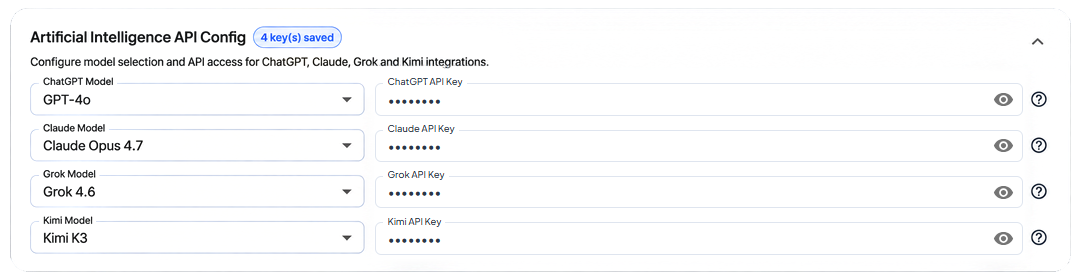
Configure AI model access for the ai_solve script action, which uses language models to handle complex form pages. This section is collapsible — click the header to expand it.
| Provider | Model Options | API Key Format |
|---|---|---|
| ChatGPT | GPT-5.4, GPT-5.4 Mini, GPT-5.4 Nano, GPT-5.2, GPT-5, GPT-5 Mini, GPT-5 Nano, GPT-4.1, GPT-4.1 Mini, GPT-4.1 Nano, GPT-4o, GPT-4o Mini | sk-... |
| Claude | Claude Opus 4.7, Claude Sonnet 4.6, Claude Haiku 4.5, Claude Haiku 4.5 (Snapshot) | sk-ant-... |
| Grok | Grok 4.6, Grok 4.5, Grok 4.3, Grok 4.20 (Reasoning), Grok 4.20 (Non-Reasoning), Grok Build 0.1 | xAI API key |
| Kimi | Kimi K3, Kimi K2.7 Code, Kimi K2.7 Code (High-Speed), Kimi K2.6 | Moonshot API key |
Each provider has a model dropdown and an API key field (with show/hide toggle). A balance tooltip shows your remaining credit when hovering over the info icon.
ai_solve action specifies which to use.7. Captcha Manager
Select your captcha solving provider and store the API key. The engine uses this to solve CAPTCHAs encountered during script execution.

| Provider | Notes |
|---|---|
| 2Captcha | Popular solving service. Supports reCAPTCHA, hCaptcha, Turnstile, and image captchas. |
| Anti-Captcha | Similar coverage to 2Captcha. |
| Capsolver | Fast token-based solver. |
| CaptchaAI | AI-powered solver via legacy 2captcha API format. |
Select a provider from the dropdown, then paste your API key. The key field has a show/hide toggle. A balance tooltip shows your remaining credit.
Saving & Resetting
| Button | What it does |
|---|---|
| Save | Writes all settings to the workspace's .env file on the engine. The header shows the last saved timestamp. |
| Reset | Reverts all fields to their last saved state (discards unsaved changes). |
Env Preview
At the bottom of the Settings page, an Env Preview section shows the full contents of the workspace's .env file as it will be written when you click Save. A Copy button lets you copy the entire contents to your clipboard — useful for debugging or sharing your configuration.
Environment Variables
Behind the scenes, each setting maps to an environment variable in the workspace's .env file. Here are the key mappings:
| Setting | Env Variable |
|---|---|
| Browser Provider | GHOST_PROVIDER |
| Proxy Mode | PROXY_MODE |
| Proxy Provider | PROXY_PROVIDER |
| Proxy Type | PROXY_TYPE |
| Proxy Host | PROXY_HOST |
| Proxy Port | PROXY_PORT |
| Proxy API URL | PROXY_API_URL |
| SID Type | PROXY_SID_TYPE |
| SID Length | PROXY_SID_LENGTH |
| Proxy Validation | PROXY_VALIDATION |
| Proxy Validator | PROXY_VALIDATOR |
| IPInfo Token | IPINFO_TOKEN |
| IPQS API Key | IPQS_API_KEY |
| Scheduler Mode | SCHEDULER_MODE |
| Min Profiles | THREADS_MIN |
| Max Profiles | THREADS_MAX |
| Traffic Split | TRAFFIC_SPLIT |
| Form Fill % | FORM_FILLING_PERCENTAGE |
| Profile Timeout | PROFILE_TIMEOUT |
| Country Filter Enabled | COUNTRY_FILTER_ENABLED |
| Filter Countries | FILTER_COUNTRIES |
| State Filter Enabled | STATE_FILTER_ENABLED |
| Filter Mode | FILTER_MODE |
| UA Category Weights | UA_CATEGORY_WEIGHTS |
| UA Subcategories | UA_SUBCATEGORY_SELECTIONS |
| UA Expiry Hours | UA_EXPIRY_HOURS |
You don't need to edit the .env file manually — the Settings page handles it. But knowing the variable names can help when debugging or reviewing logs.
Proxy Troubleshooting
Connection timeout
Symptom: Profiles fail to open or take very long to load the first page.
Fix: Run Test Proxy to verify connectivity. Check that the host and port are correct. Try switching the proxy type (e.g. SOCKS5 to HTTP) if your provider supports both.
Multiple profiles getting the same IP
Symptom: The dashboard shows the same IP for different profiles.
Fix: This usually means the session ID isn't being recognized by your provider. Check the SID Type and Length match what your provider expects. Some providers need longer session IDs or specific character sets.
IP flagged as datacenter
Symptom: Target websites show captchas or block access.
Fix: Run Test Proxy and check the IP type chips. If it shows "Datacenter" or "Proxy", your proxy provider may be assigning datacenter IPs. Contact your provider or switch to a residential/mobile plan.
Old IPs loading after changing API URL
Fix: Click Clear Proxy Cache in the Proxy Config section to flush the SQL cache. The engine will fetch fresh IPs on the next run.