
Additional Settings
The Additional Settings page contains configuration that sits outside the main per-workspace Settings page. Here you configure antidetect browser launch paths, typing behavior, multi-URL handling, proxy validation, sheet connections, the app's visual appearance, and you can export or import your entire Ghost RPA setup.
.env automatically. Appearance settings (theme, layout, colors) are stored in your browser and apply instantly.Global vs. Per-Workspace Settings
| Setting | Scope |
|---|---|
| Antidetect launch paths | Global — same paths for all workspaces |
| Purge before run, Typing mode, Multi-URL mode | Global — mirrored to every workspace |
| Proxy validators, Latency threshold, Fraud score, Block flags | Global — mirrored to every workspace |
| Sheet connections (Google, Office 365) | Global — one connection shared by all workspaces |
| Appearance (theme, layout, sidebar, colors, density) | Browser-local — stored per browser, not synced |
| Provider, Proxy type/mode, Threads, Domains, AI keys, Captcha | Per-workspace — configured on the Settings page |
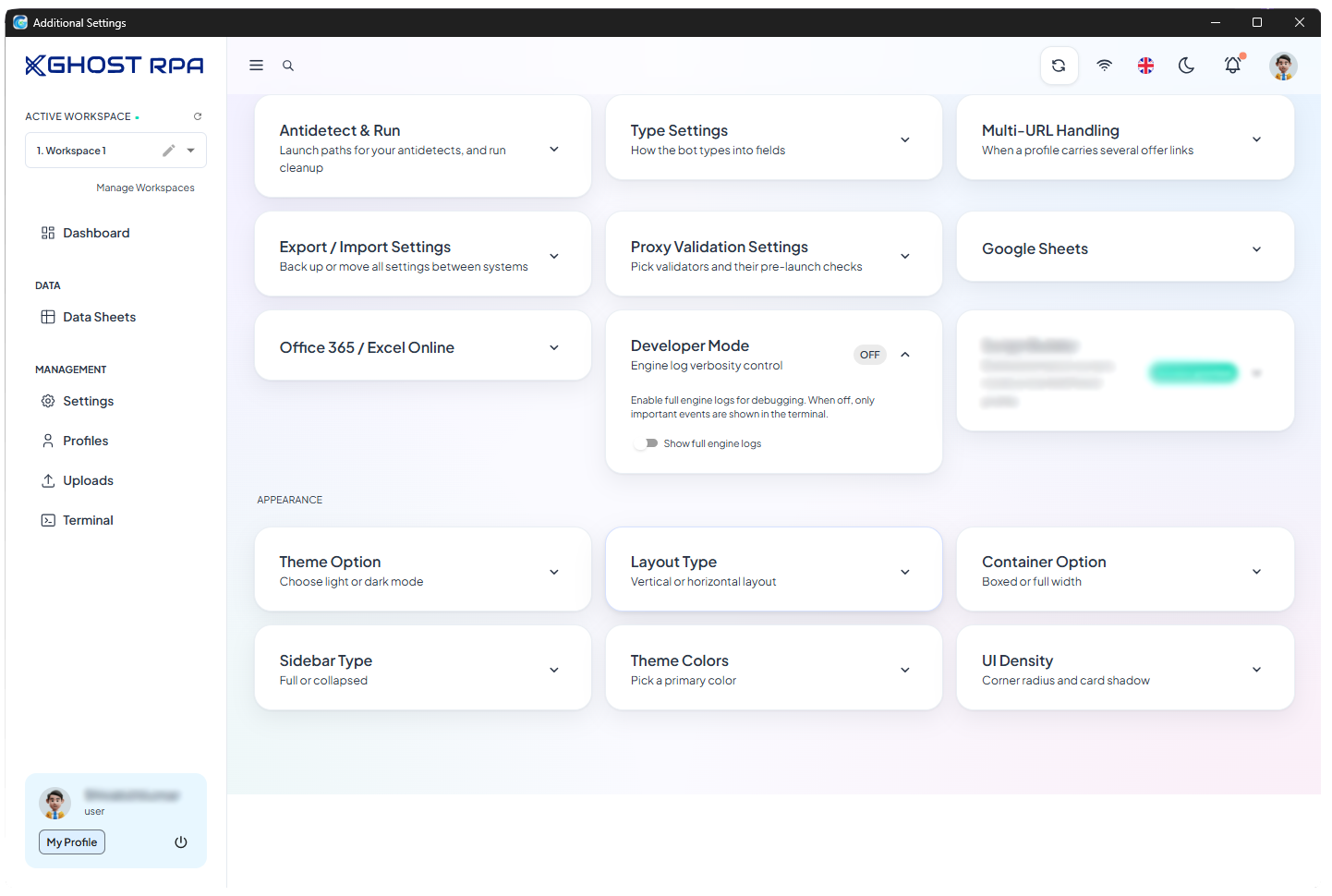
The page is organized as a grid of collapsible cards. Each card starts collapsed by default — click the card header to expand it. The collapse state is saved in your browser so cards you open stay open on your next visit.
Antidetect & Run
This card configures where Ghost RPA finds the executable for each antidetect browser provider, and a pre-run cleanup toggle.
Antidetect Launch Paths
Ghost RPA supports 14 antidetect browser providers. Each provider needs to know the path to its installed executable so the engine can launch browser profiles through its API. The collapsible list shows all 14 providers with:
- Provider logo and name — the antidetect brand
- "active" chip — shown next to the provider currently selected on the main Settings page
- "installed" chip — shown if auto-detect found the provider installed on your machine
- Path text field — the full path to the
.exefile. Pre-filled by auto-detect if found; editable manually.
| Provider | Example Path |
|---|---|
| AdsPower | C:\Program Files (x86)\AdsPower Global\AdsPower Global.exe |
| BitBrowser | C:\Program Files\bitbrowser\BitBrowser.exe |
| Dolphin{anty} | C:\Users\<you>\AppData\Local\Dolphin Anty\Dolphin Anty.exe |
| GhostFox | (Built-in — no external exe needed) |
| GeeLark | C:\Program Files\GeeLark\GeeLark.exe |
| GoLogin | C:\Program Files\GoLogin\GoLogin.exe |
| Incogniton | C:\Program Files\Incogniton\Incogniton.exe |
| Kameleo | C:\Program Files\Kameleo\Kameleo.exe |
| Lalicat | C:\Program Files\Lalicat\Lalicat.exe |
| MoreLogin | C:\Program Files\MoreLogin\MoreLogin.exe |
| Multilogin | C:\Users\<you>\AppData\Local\Programs\multiloginapp-app\Multilogin.exe |
| Octo Browser | C:\Users\<you>\AppData\Local\Programs\Octo Browser\Octo Browser.exe |
| Undetectable | C:\Program Files\Undetectable\Undetectable.exe |
| VMLogin | C:\Program Files\VMLogin\VMLogin.exe |
Auto-Detect
Click the Auto-detect button to scan your machine for installed antidetect browsers. The scanner checks the standard installation locations for each provider. Any provider found is marked with an "installed" chip and its path is pre-filled — only if the field is empty. If you have already typed a custom path, auto-detect does not overwrite it.
After detection, a status message shows how many providers were found (e.g. "Auto-detected installed antidetects: 3"). If none are found, you need to enter the paths manually.
Delete Leftover Profiles Before Run
A toggle switch. When enabled (default: on), the engine cleans up any Ghost RPA profiles left over from a previous run before starting a new one. This only deletes profiles in the Ghost RPA group — your personal browser profiles and other groups are never touched.
Click Save at the bottom of the card to persist these settings.
Type Settings
Controls how the engine types text into form fields. The typing mode applies globally to every type action in every script.
| Mode | Speed | Description |
|---|---|---|
| Copy-paste (instant) | Instant | Fills the field in one shot, like pasting from clipboard. Fastest but looks robotic — some detection systems flag this. |
| Fast typing | Fast | Key-by-key typing at a quick pace. Faster than human but still per-character. |
| Normal (human) | Medium | Natural human typing speed with slight randomized delays between keystrokes. Recommended for most use cases. |
| Slow typing | Slow | Deliberately slow typing. Useful for sites that monitor typing cadence closely. |
| Human typing with typos | Medium | Human speed with occasional typos that are immediately corrected (backspace + retype). The most human-like option. Recommended for high-security sites. |
Multi-URL Handling
When a browser profile carries multiple offer URLs (assigned on the Profiles page), this setting controls how the engine processes them.
| Mode | What Happens |
|---|---|
| Fresh identity per URL | Each URL runs as a completely new device: the browser profile is closed and reopened with a new fingerprint, user-agent, and proxy between URLs. Recommended — safest because every URL sees a different identity. Slightly slower due to browser restarts. |
| Same profile — new tab per URL | All URLs open as new tabs within one browser session, sharing the same fingerprint, user-agent, and proxy. Faster, but every URL sees the same identity — useful when the URLs belong to the same site and you want them to share a session. |
If a profile has only one URL, this setting has no effect.
Export / Import Settings
Back up your entire Ghost RPA configuration or move it to another machine.
Export
Click Export all (.zip) to download a single .zip file containing:
- All workspace
.envfiles (settings for every workspace) - Sheet bindings and configurations
- Generated profiles
- Script folder paths and bindings
On Chromium-based browsers (the Ghost RPA desktop app), a native "Save As" dialog opens so you can choose where to save. On other browsers, the file downloads to your default Downloads folder. The filename includes a timestamp (e.g. ghost-settings-2026-11-25-14-30-00.zip).
Import
Click Import (.zip) and select a previously exported .zip file. The app restores all settings from the archive.
After import, reload the app to see the restored settings across all pages.
Proxy Validation Settings
Before the engine launches a browser profile, it can validate the assigned proxy against one or more quality services. If the proxy fails any check, the engine rejects it and tries the next one.
Validators
A multi-select dropdown where you choose which validators to enable. Each selected validator reveals its own options below:
| Validator | Source | What it Checks |
|---|---|---|
| Ghost validator | ip-api (free) | IP geolocation and latency. Active by default. The latency threshold is configurable (see below). |
| IPQualityScore (IPQS) | ipqualityscore.com | Fraud score, abuse flags, VPN/proxy/TOR detection. Requires an API key in Settings → Proxy. |
| ipinfo | ipinfo.io | Privacy flags (VPN, proxy, TOR, hosting, relay). The free tier is active by default alongside Ghost. |
Ghost — Latency Threshold
When the Ghost validator is enabled, you can set a maximum proxy latency. Any proxy slower than this threshold is rejected at pre-launch.
| Option | Meaning |
|---|---|
| None — do not block | Latency check disabled; any speed is accepted |
| 2000 ms (strictest) | Reject proxies slower than 2 seconds |
| 4500 ms (default) | Balanced threshold — works for most residential proxies |
| 10000 ms (most lenient) | Accept even very slow proxies — useful for mobile proxies |
IPQS — Fraud Score Threshold
When IPQS is enabled, set the maximum fraud score (0–100). Proxies scoring at or above this value are rejected.
| Option | Meaning |
|---|---|
| None — do not block | Fraud score check disabled |
| ≥ 75 (IPQS recommended) | IPQS's own recommended threshold. Blocks most flagged IPs while keeping clean residential proxies. |
| ≥ 90 (strictest) | Only blocks the worst offenders |
Block Privacy Flags
When IPQS or ipinfo is enabled, you can block proxies flagged with specific privacy/abuse types. This is a multi-select dropdown:
| Flag | What it Means |
|---|---|
| VPN | IP belongs to a known VPN provider |
| Proxy | IP is a known proxy server |
| TOR | IP is a TOR exit node |
| Hosting / Datacenter | IP belongs to a hosting provider or datacenter |
| Relay | IP is a relay service (e.g. Apple Private Relay) |
| Recent abuse (IPQS) | IPQS has flagged recent abuse activity from this IP |
| Bot / automated (IPQS) | IPQS detects bot or automated traffic from this IP |
Sheet Connections
Two connection cards for linking your cloud spreadsheet accounts:
Google Sheets
Connect your Google account so the engine can read and update your Google Sheets during runs. The card shows:
- Connection status — whether a Google service account is linked
- Connect / Disconnect button — sign in through Google and grant access, or revoke access
For detailed setup instructions, see the Google Sheets Integration guide.
Office 365 / Excel Online
Connect your Microsoft account so the engine can read and update your Excel workbooks on OneDrive or SharePoint. The card shows the same connect/disconnect flow.
For detailed setup instructions, see the Office 365 Integration guide.
Developer Mode
A toggle card that enables full engine debug logs. When Developer Mode is on, the Terminal's log panel shows the complete raw engine output including internal timing, page detection matches, driver commands, and retry loops.
In normal mode, the Terminal shows Clean mode cards with structured profile information. Developer Mode switches the right panel to Debug mode with raw scrolling log lines.
Script Builder
The Script Builder card gives access to the in-app script editor where you can create and modify automation scripts visually. This feature is access-gated — it only appears if your account has been granted Script Builder access by an administrator.
If you see this card, click it to open the builder. If the card is not visible, your account does not have builder access — contact your administrator.
Appearance
The bottom section of the page contains six compact cards for customizing the app's visual appearance. These settings are stored in your browser and apply instantly — no save button needed.
Theme Option
Switch between Light and Dark mode. Dark mode uses a dark background with light text — easier on the eyes during long sessions.
Layout Type
| Option | What it Does |
|---|---|
| Vertical | Standard sidebar layout — the navigation menu runs vertically on the left side of the screen. This is the default. |
| Horizontal | Top navigation bar — the menu items run horizontally across the top of the page. The sidebar disappears. |
Container Option
| Option | What it Does |
|---|---|
| Boxed | Content is centered in a fixed-width box with margins on ultrawide screens. Good for readability on very large monitors. |
| Full | Content stretches to fill the entire browser width. Uses all available screen space — the default. |
Sidebar Type
| Option | What it Does |
|---|---|
| Full | Sidebar shows icons with labels. Wider but easier to navigate — the default. |
| Mini | Sidebar collapses to icons only. Gives more horizontal space to the main content area. Hover over an icon to see its label. |
Theme Colors
Pick a primary accent color from six options:
| Color | Hex | Name |
|---|---|---|
#5D87FF | Blue (default) | |
#0074BA | Aqua | |
#763EBD | Purple | |
#0A7EA4 | Green | |
#01C0C8 | Cyan | |
#FA896B | Orange |
The selected color is used for buttons, links, active states, and the sidebar highlight throughout the entire app. Click a color circle to apply it instantly.
UI Density
Fine-tune the visual density of the interface:
- Border Radius — a slider from 0 to 24 pixels. Controls the corner roundness of cards, buttons, and inputs. Lower values give a sharper, more compact look; higher values give a softer, more rounded look.
- Card style — choose between:
- Border — cards have a thin border with no shadow. Cleaner, flatter appearance.
- Shadow — cards have a subtle drop shadow. Gives depth and visual separation.
Tips
- Set up launch paths once. After configuring paths for your installed antidetect browsers, they persist across all workspaces. You only need to change them if you install a new version at a different location.
- Use Human Typo mode for high-security sites. Some websites analyze typing patterns to verify real user interaction. The Human Typo mode produces the most natural keystroke cadence.
- Fresh Identity is safer for multi-URL profiles. If a profile visits multiple offers, Fresh Identity gives each URL its own fingerprint so they cannot be linked.
- Export before major changes. Before updating Ghost RPA, switching machines, or making big settings changes, export a backup. The import function makes it easy to restore everything.
- Proxy validation is optional but recommended. Even with a good proxy provider, individual IPs can be flagged. Enabling Ghost + IPQS validation catches bad proxies before they waste a profile launch.
- Appearance changes are instant. No save button needed for theme, layout, sidebar, or color changes — they apply immediately and are stored in your browser.