
Profiles
The Profiles page is where you create the browser profiles that the engine will launch during a run. Each profile gets a unique name (e.g. G_PROFILE_WS1_AB3K), and you assign one or more offer URLs to it. The engine opens each profile in your antidetect browser and navigates to its assigned URL.
_WS1_, _WS2_) so they never collide across workspaces.Page Layout
The Profiles page has two tabs: Setup and Manage. The header shows three status chips:
- N profiles — total number of generated profiles
- N total links — sum of all URLs across all profiles
- Sync status — whether profiles are saved to the manager server (Synced, Syncing..., or Manager offline)
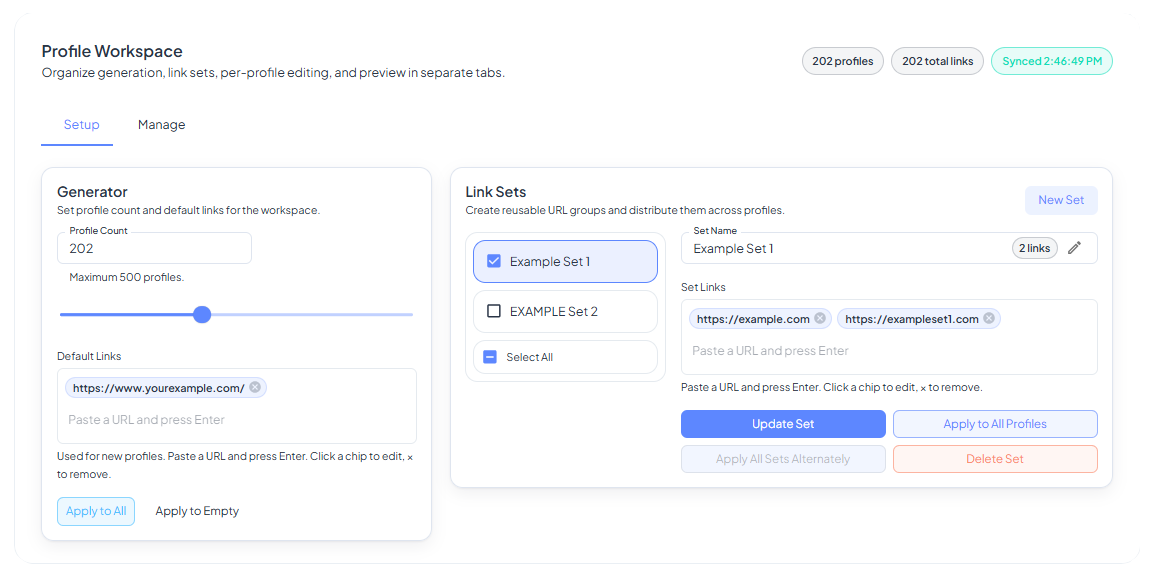
Setup Tab
The Setup tab is split into two panels: Generator on the left and Link Sets on the right.
Generator
The Generator panel controls how many profiles are created and what default URLs they receive.
| Control | What it does |
|---|---|
| Profile Count | Number field + slider (1–500). Sets how many browser profiles will be generated. Each profile gets a unique random 4-character suffix. |
| Default Links | Chip editor for URLs. Paste a URL and press Enter — it appears as a pill/chip. Click a chip to edit it inline, click × to remove. These URLs are assigned to every new profile by default. |
| Apply to All | Overwrites the links of every profile with the Default Links. |
| Apply to Empty | Only fills in profiles that currently have zero links — leaves others untouched. |
Link Sets
Link Sets let you create reusable groups of URLs and distribute them across profiles. This is useful when you run multiple offers and want different profiles to visit different URLs.
The Link Sets panel has:
- A set list on the left with checkboxes for multi-select
- A set editor on the right where you name the set and add URLs
Creating a Link Set
- Click New Set in the top-right corner.
- Type a name for the set (e.g. "Offer A").
- Paste URLs into the chip editor — one per line, or comma-separated. Duplicate URLs are automatically removed. Click any URL chip to edit it inline.
- Click Save Set.
Editing & Deleting Link Sets
- Rename — click the pencil icon next to the set name to edit it inline. Click the check icon to save.
- Update — when editing an existing set, the button changes to Update Set (instead of "Save Set" for new sets).
- Delete — click the Delete Set button to permanently remove the selected set. This cannot be undone.
Applying Link Sets to Profiles
| Action | Requirement | What it does |
|---|---|---|
| Apply to All Profiles | Exactly 1 set checked | Every profile receives the URLs from the checked set |
| Apply All Sets Alternately | 2 or more sets checked | Distributes sets round-robin: Profile 1 gets Set A, Profile 2 gets Set B, Profile 3 gets Set A again, etc. |
| Select All | 2+ sets exist | Checks or unchecks all sets at once |
Manage Tab
The Manage tab lets you edit individual profiles and preview the final output.
Profile Editor
The left panel shows a dropdown of all generated profiles. Select a profile to view and edit its URLs:
- Selected Profile dropdown — pick any profile by name
- Previous / Next buttons — step through profiles one by one
- Add Link — paste a URL and click Add to append it
- Bulk Edit Links — chip editor for adding/removing multiple URLs at once
- Use Default Links — resets this profile to the default links from the Generator
- Clear Links — removes all URLs from this profile
Preview Panel
The right panel shows a live JSON preview of all profiles. Each profile card displays:
- The profile name in blue
- The link count
- Each URL as a green pill
Two export buttons are available:
- Copy JSON — copies the full
profiles.jsonto clipboard - Download — downloads as a
profiles.jsonfile
Auto-Sync
Every change you make is automatically saved to the manager server after a 450ms debounce. The sync chip in the header updates to show the status:
- Synced (green) — changes saved successfully, shows the timestamp
- Syncing... — save in progress
- Manager offline (red) — could not reach the server; changes are still stored locally and will sync when the server comes back
Profile Naming Convention
Profile names follow a strict pattern: G_PROFILE_WS{N}_{XXXX}, where:
G_PROFILE— fixed prefixWS{N}— workspace number (1–5){XXXX}— random 4-character suffix (A–Z, 0–9)
This naming convention ensures profiles never collide across workspaces and matches the engine's internal _WS{id}_ tag used for scoped group cleanup.
localStorage. Clearing browser data will remove them, but your profiles are always synced server-side.